# How to Filter Applications & Options

#### <u>How to filter through the applications in your dashboard?</u>

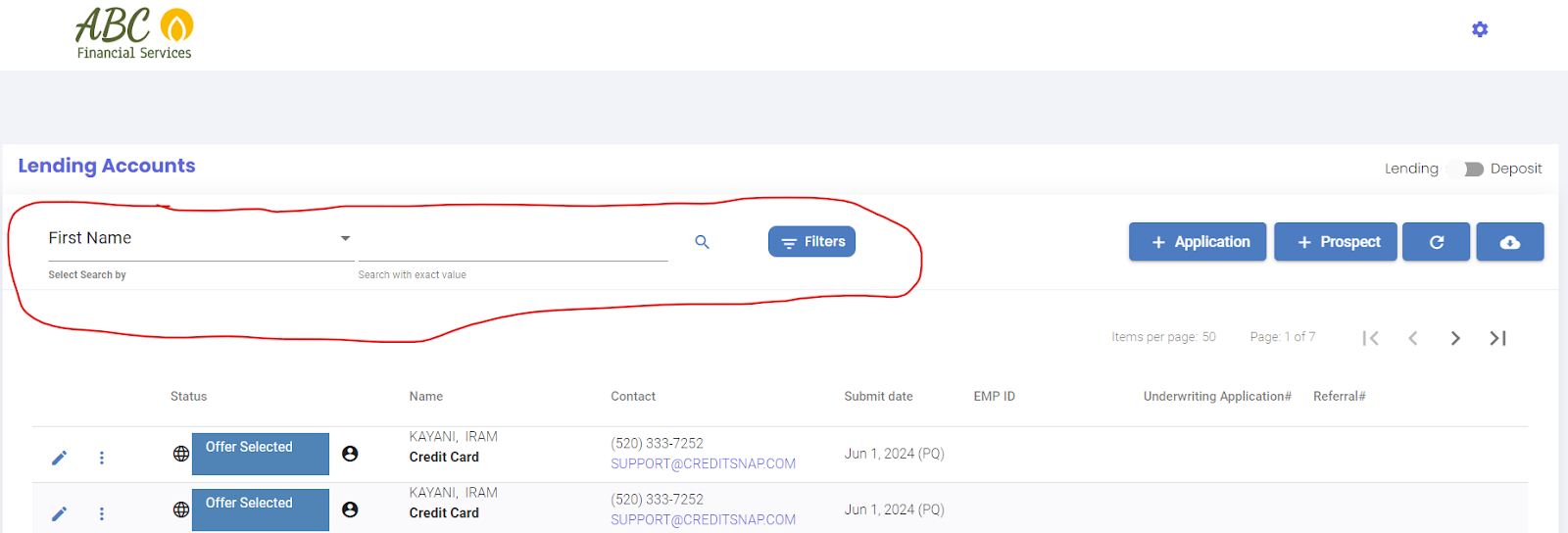
To filter applicaitons to find what you are looking for, two filters are available - simple and advanced.

**Simple Filter Options -** You can filter using inputs such as - First Name, Last Name, Contact No , Email, Core Account, Referral , App ID (see attached)
<span id="bkmrk--1" style="font-weight: normal;">  
</span>

<span style="font-size: 11pt; font-family: Arial,sans-serif; color: #000000; background-color: transparent; font-weight: 400; font-style: italic; font-variant: normal; text-decoration: none; vertical-align: baseline; white-space: pre-wrap;"><span style="border: none; display: inline-block; overflow: hidden; width: 624px; height: 212px;">![](https://lh7-us.googleusercontent.com/JljP_Ho4XzsUI26LvIBmKLhLjuuf80o472YMd_1cpGBt5W3ylPWGvklm1Vc1ZR6d7n25OT745EmTArZcy0sVGtcp862B38i-YiXnIwN0ZMZ_psO77OFMooD-Bqp0z3jKmMDPMUHmgCDwLJTCNalJMDo)</span></span>

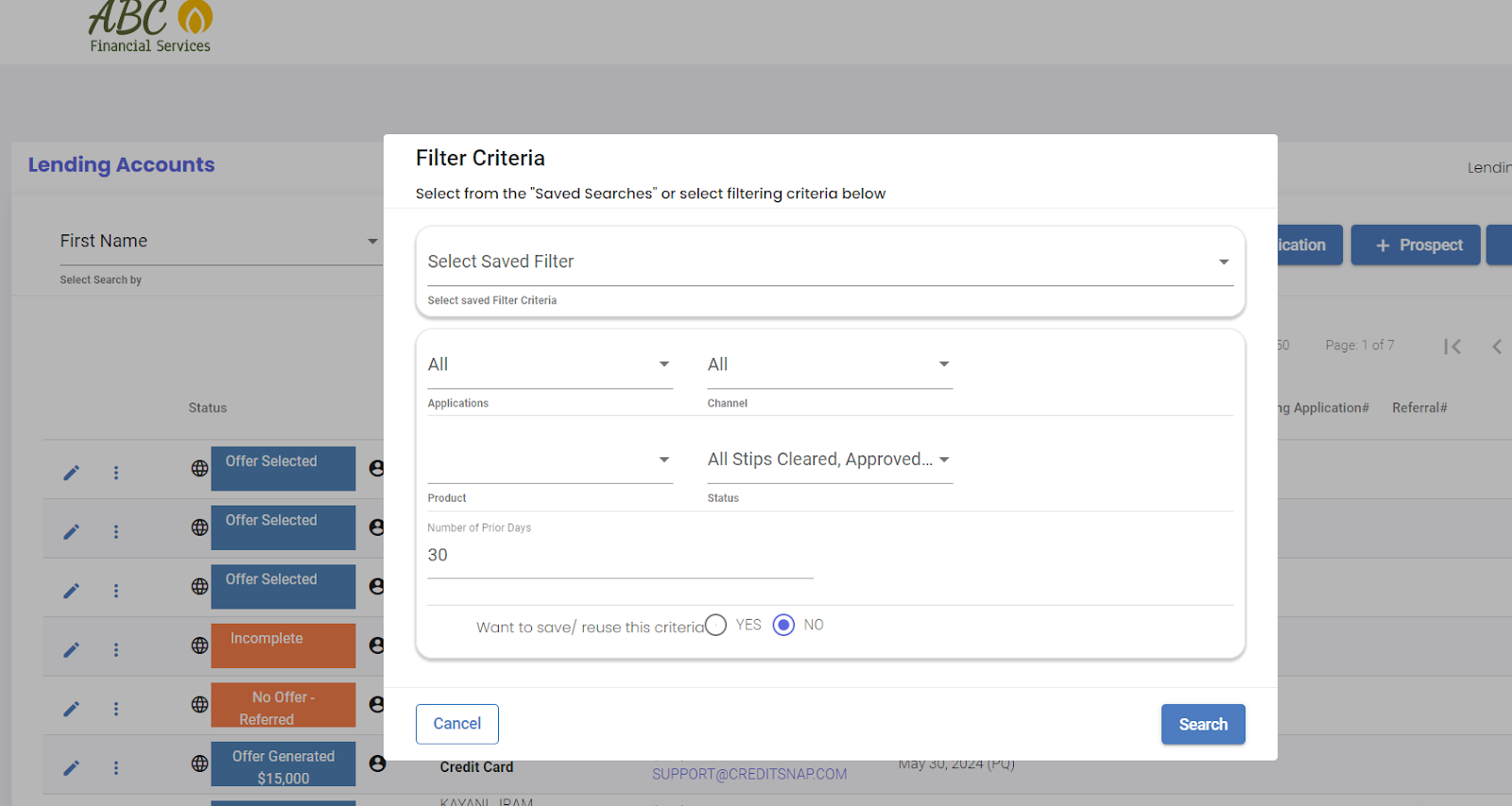
**Advanced Filter Options -**

Using the "Filters" button on the main dashboard, advanced filters can be applied and used. Not only can you use these advanced filters, but those searches can be "saved" and reused <span id="bkmrk--3" style="font-weight: normal;"></span>
<span style="font-size: 11pt; font-family: Arial,sans-serif; color: #000000; background-color: transparent; font-weight: 400; font-style: italic; font-variant: normal; text-decoration: none; vertical-align: baseline; white-space: pre-wrap;"><span style="border: none; display: inline-block; overflow: hidden; width: 624px; height: 332px;">![](https://lh7-us.googleusercontent.com/FUFxYxEu81coskda9ef8vUIzkSIDK2rbpbsbOuo7WTeBkvBKra1wjCwdVX-FDuGvIT8yCAfu6jynG0nrEB8zq_eZ67jVm8SHjvrNxDrpY9hBhp6cIW6-kW9LWEC6jxNJZKjWEKkW5gNNhBRc4nUVHuA)</span></span>