CreditSnap Support
- Introduction
- Login and Access to Back-office/Admin system
- Dashboard Overview
- Productivity Features
- Stipulations and how to manage them
- How to Filter Applications & Options
- Deposit Dashboard - Status Overview
- Inside Application, overview of the tabs
- Reporting, Tracking and more
- Applicant / Borrower Tab
- Terms tab
- Credit Report Tab
- Documents Tab
- Core Tab
- CrossSell Tab
- Trade/Collateral Tab
- Credit Analysis Tab
- Legend and Status Definitions
- Reporting
- Offers, Underwriting, Decline Types and Rule Types
- Indirect Lending
- Back-office / Admin System Access Role Details
Introduction
- What is CreditSnap's back office? CreditSnap's back office (BO) is a comprehensive platform that provides the financial institutions staff support for various back-office functions, including account opening, loan origination, underwriting, and servicing etc.
- What features does CreditSnap's back office offer? CreditSnap's back office offers a wide range of features, including customizable workflows, automated decision-making, real-time analytics, and integrations with third-party data sources.
- What types of businesses can benefit from CreditSnap's back office? CreditSnap's back office is designed to meet the needs of a variety of businesses, including banks, credit unions, and other financial institutions in the lending space.
- How does CreditSnap's back office improve operational efficiency? CreditSnap's back office streamlines various back-office processes, such as account opening, underwriting, and loan origination, to improve operational efficiency and reduce manual errors. The back office provides various customization features such as:
- Product Admin Features - Updating rates, rules and credit policy along with underwriting decisioning in real time
- Employee Admin Features - Queue and workflow management, ability to assign applications to staff members, setting reminders and notes on individual applications. The CreditSnap back office allows the master admins to add and remove users to the back-office along with defining permissions for these users
Login and Access to Back-office/Admin system
How to access CreditSnap Back-office/Admin system?
- CreditSnap Back Office/Admin system URL is unique for your Organization
- It usually will be something like https://abc.creditsnap.com, where abc would be your organization name. Please contact your internal CreditSnap admin if you do not have this URL
- It usually will be something like https://abc.creditsnap.com, where abc would be your organization name. Please contact your internal CreditSnap admin if you do not have this URL
- Login Credentials
- When you are added into the system, you will receive an email with a link to set your own password. If you have not received one, then reach out to your internal CreditSnap admin
- CreditSnap admin at your organization has the ability to add anyone from the organization to access CreditSnap backoffice/admin system (If you are an admin, see below on how to give CreditSnap backoffice access to employees at your organization)
- Login Password Policy: Your login password must contain at least eight characters, including one uppercase letter, one number, and one special symbol
ADMIN
Employee Management - How to add/remove an employee to the CreditSnap back office and define their permissions ?
- In order to add/remove an employee to the CreditSnap backoffice/admin system, you will first need to login and will need to have this permission - "Can Add, Remove, Reset Password for Employees Access". The master admins on your team will already have this permission enabled. If you are not a master admin please ask your internal master contact to grant access.
- Navigate to the Admin dashboard by clicking on the gear icon (⚙️) on the top right of the BO.
- This will direct you to the Employee Management Dashboard
- To add an employee click on the + Employee button on the top right of this screen
- This will surface the Add Employee pop-up
- On this page you will be asked to add the basic information such as Employee Name, Employee ID and Email. Please ensure the email address is accurate as it will be used to deliver a Reset Password Link
- You can provide permissions by selecting one or multiple roles my checking the below items:
- Can Add, Remove, Reset Password for Employees Access
- Can Change Rates, Credit Policy and More
- Employee can see ONLY those apps created by that employee
- Employee can see all applications
- Merchant Permission - Can only see apps from the POS location (Please unselect all others)
- Needs Access to Credit Reports
- Authorized to Fund
- Can do manual underwriting, override system decisions to change interest rate and term selections
- The last permission is a product level permission. Lending permission is for access to all loan related products and Deposit permission is for all account opening related permissions. All would provide the use access to both product categories
- In order to Delete , Edit or Reset Password of an existing employee select the gear icon (⚙️) next to the employee you wish to delete - this will be under the Actions column. Here you will see the options
Access Management for Back-office
Click here to view different access role permissions available within back-office.
Queue Management
Queue management enables admins to set up Queues and assign employees to those created queues.
Dashboard Overview
Once you login, you will land on Dashbaord. Dashboard provdies below capabilities
- Review list of applications
- Search and Filter Applications
- Switch between Lending and Deposit using the toggle at the right top (if you have permissions to view both Lending and Deposit)
- Create a new Application (see attached image)
- Create a new prospect applicaiton (see attached image)
- Enter into an edit/view mode of the application (see attached image)
- Shortcuts to Notes, Reminders and assignment functionality
High-level Deposit dashboard level features
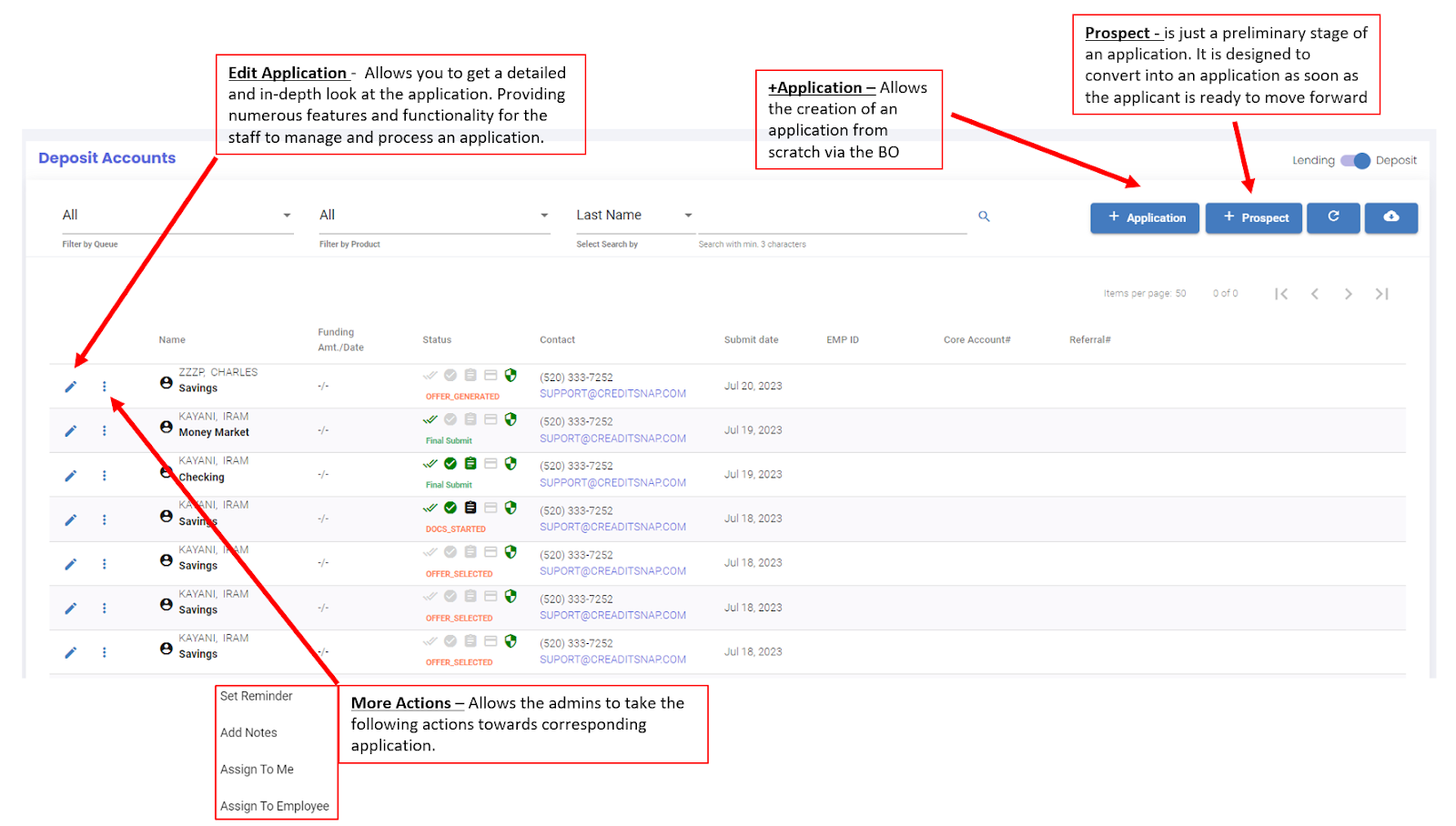
How to Toggle Between Account Opening and Lending Dashboard?
The first time you login you will be directed to the dashboard. Here depending on the product and permissions you may see slightly different screens.
- Deposit
- Lending
You can switch between the two products if applicable using the toggle on the top right of the window. - 
Lending Dashboard
How to filter through the applications in your dashboard queue?
- Filter By Queue
My Applications ,Incomplete ,No Offer,No Offer No Hit,Final Submit,Offer Expired,Final Submit Failed,Offer Generated,Prospect,Final Submit (Referred),No Hit,Coborrower No Hit,No Offer Soft Decline,No Offer (Referred),Withdrawn
- My Applications - Refers to applications create by you in the back-office or assigned to you
- Incomplete Applications - Applications abandoned by the user before receiving offers
- Offer Generated - Applications that have received and seen offers but haven not made selection
- Final Submit
- Final Submit(Referred) - Any application with status (Referred) is not an auto approved app, and will require a decision on CreditSnap (if CS LOS) or on your LOS (if external LOS).
- No Offer - Applicant does not meet your eligibility criteria to receive offers or is flagged by fraud checks
- No Offer No Hit - There is no bureau report on this user to present offers
- No-offer(Soft Decline) - Applicant is declined but if applicable to your institution - your Underwriters can manually generate and present offers to this applicant in special cases
- Filter By Product - Allows you to filter by Products that are relevant to your institution that are available on CreditSnap
- Filter By Search - You can filter using inputs such as - First Name ,Last Name, Contact No, Email, Underwriting Application , Referral , App ID and, entering
Account Opening Dashboard
The deposit dashboard gives you a snapshot of all the applications in your queue along with a number of high level features as well.
What is the order of Steps for a complete Account opening application?
Before diving into the Deposit Dashboard here is the applicable order of steps that need to completed to complete an Account Opening Application
- Complete Application and Provide Consents
- Complete KYC/ID-Verification to Successfully be generate Member related credentials from Core
- E-signatures for Account Opening Docs
- Funding the account
Productivity Features
There are several productivity Features within CreditSnap
- Add a reminder on the applciation
- Assign an applicaiton to self or someone else
- Add Notes
- Withdraw an application
- Queue Management
- Lock an application
- Mark an application Complete
- Send App Online
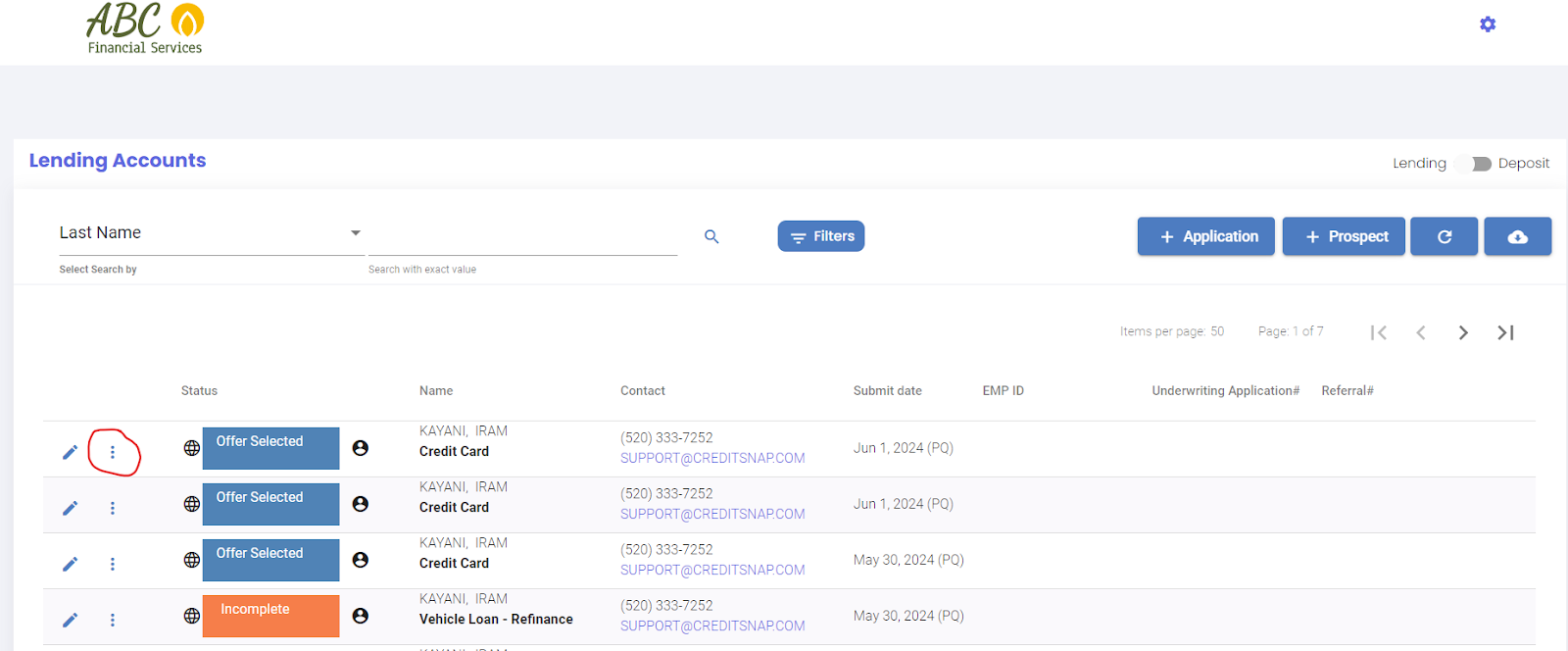
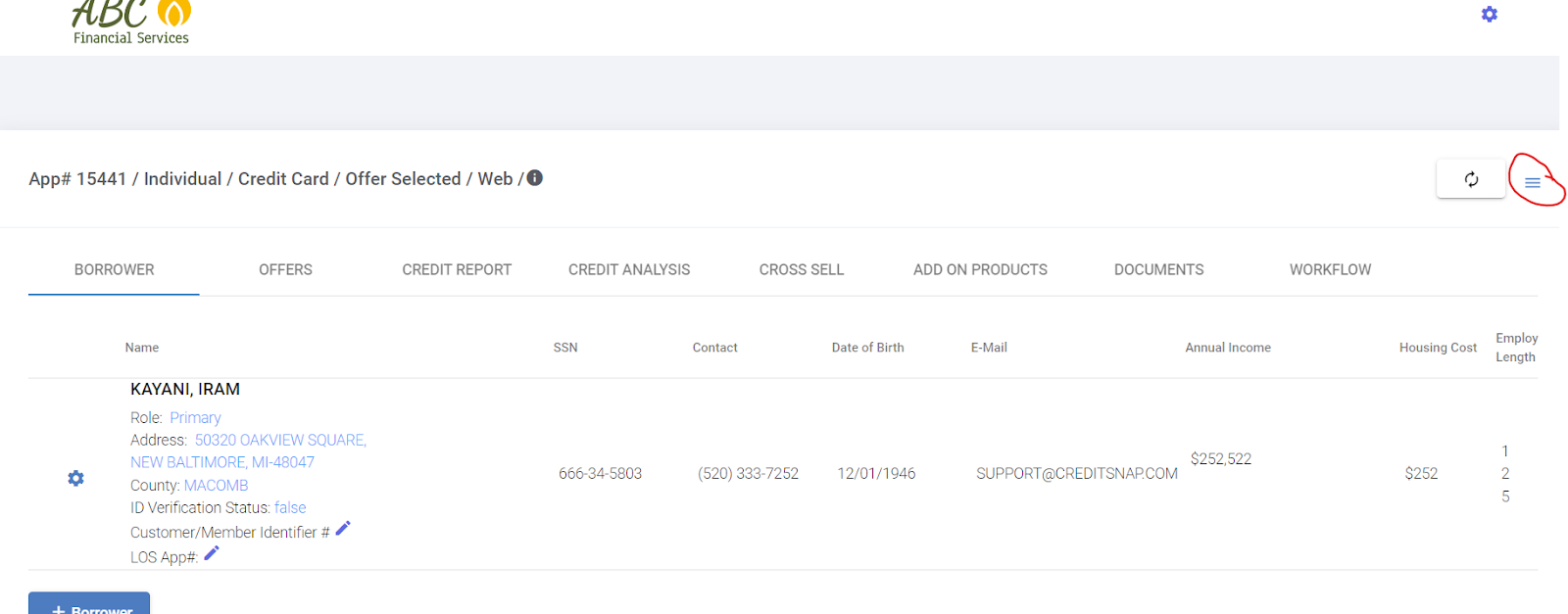
Throughout this article, you will find references to "three dots menu" in the dashboard, and "hamburger menu" on the application page. See screenshots below what they mean
Reminder Capabilities
Anytime you call an applicant and the applicant suggests you call back on a certain date, then the employee can add a reminder on that application. When that day arrives, the application will float to the top of your queue with a “bell/reminder” icon on it
To add a reminder, you can use either 1) the "three dots menu" on the dashboard or 2) the hamburger menu on the application page
Reminders or automatic follow-ups with applicants are also built into the system. These reminders go out to applicants that are not making progress - via email and sms. Your marketing team can work with CreditSnap team to activate these, or administer them under "Email & SMS Admin" from the admin options.
Assign an application to self or someone else
CreditSnap is designed to automate your applicaiton workflows. ONLY when an applicaiton needs to be updated, assign that applicaiton to self or someone else. If no changes needed, then always elect "No" when prompted at opening an application
- You can assign an application to yourself in one of three ways - 1) the "three dots menu" on the dashboard next to the application (or) 2) the hamburger menu on the application page (or) 3) On edit of an application, if the applicaiton is not assigned to anyone yet, then a prompt will appear asking if you want to assign this to yourself. Click "Yes" to assign that applicaiton to yourself.
- You can assign an application to someone else in one of two ways - 1) the "three dots menu" on the dashboard next to the application (or) 2) the hamburger menu on the application page.
Add Notes
CreditSnap automatically adds notes at every step of the way. To see the notes and event trail, edit applicaiton -> Click on "Events" option towards left bottom. In addition to these automatic notes, you may need to add adhoc notes on to the applicaiton after a customer conversation or after applicaiton review.
You can add notes to an applicaiton in one of two ways - 1) the "three dots menu" on the dashboard next to the application (or) 2) the hamburger menu on the application page.
Withdraw an application
When an applicant decides to not pursue an application further, you can "Withdraw" that applicaiton. To do so, use the hamburger menu on the application page and the Withdraw option there.
Note: When an application already exists for an applicant, and if they try to start another applicaiton of the same category, then the system will automatically channel them to the previously created applicaiton. If you are trying to allow the applicant to create a new applicaiton, then marking the old applicaiton "Withdrawn" will wllow the applicant ot create another applicaiton of the same category.
Lock an application
When you do not want anyone in your team to acidentally edit anything in an application (may be because you are already having a conversation with the applicant (or) because compliance or someone asked for that applicaiton to be untouched), you can use "Lock" option from the hamburger menu on application page
Note: Some applications - when complete or when funded - can enter into Lock state automatically.
Mark an application Complete
When an application is successfully booked, you can "Mark it Complete" from the hamburger menu on the application. While it is ont necessary to mark an applicaiton complete, some teams prefer to do so so that they know to not worry about them anymore
Send App Online
CreditSnap system is designed to automate the process for your applicants. But every now and then applicaitons need manual review. Once you complete your review, you do not need to send an email or call the cutsomer to let them know. To make it easy for you to make this communcation happen, always use "Send App Online" option from the hamburger menu on the application. Applicant will immediately receive an email and SMS with a deep link that they can use to directly go to the page where they need to continue.
This process is the same for every situation where you want the applicant to resume the application. These emails and sms carry common messaging like "Your applicaiton is ready for next steps" so that the experience of the applicant is standard and easy.
Queue Management
Queues are designed to a) categorize applications into manageable queues and b) to enable notificaiton when an application falls into a queue.
How to create a Queue: Queues can be created or edited from Gear Icon -> Lending Admin or Deposit Admin -> Queue Management. A queue can be created by selecting a set of statuses that you want to be a part of that queue. For example, if Funding team wants to see only those apps ready for Funding, then a "Funding Queue" can be created by selecting "eSignature Complete" status.
Who can be a part of the queue? Once a queue is created, employees can be associated to that queue. Once assigned, those employees can select the queue from "Filters" option at the top of the dashboard anytime.
Notifcations: Queue can also enable notificaitons. When creating a queue, an optional "distribution email" can be attached to the queue. When an application falls into that queue, then an email notificaiton will be sent to that distribution email. In other words, you may not assign any employees to a queue, but decide to use queues becase you want to use the email notifications functionality.
Stipulations and how to manage them
Stipulations are a mechanism to manage what next steps are needed AFTER data entry is over but before an application becomes eligible for agreements. In other words, Stipulations are the "verifications" an application has to go through before it is ready for agreements and booking. It is a critical part of CreditSnap's automation engine.
For example,
- A Deposit applicaiton may need KYC / ID Verification before agreements
- On the other hand a Personal Loan automaiton may need Income Verification -> ID Verification before agreements and booking into core
- A Credit Card may only need Income Verification before electronic acceptance and booking into core
- An auto loan may need Insurance Document Upload -> Title copy upload -> Income Verification -> ID Verification
The most popular stipulations in the CreditSnap system are:
- ID Verification - Automatically reviewed by the system
- Income Verification - Automatically reviewed by the system
- Document Upload (one or more) - Always need manual review
CreditSnap also supports "Manual Review" stipulation. This stipulation is designed to give underwriters or retail teams a way to stop automation for certain types of applications.
Where?
Stipulations are found under "Stipulations" tab for Deposits, and in "Credit Analysis" tab for Lending.
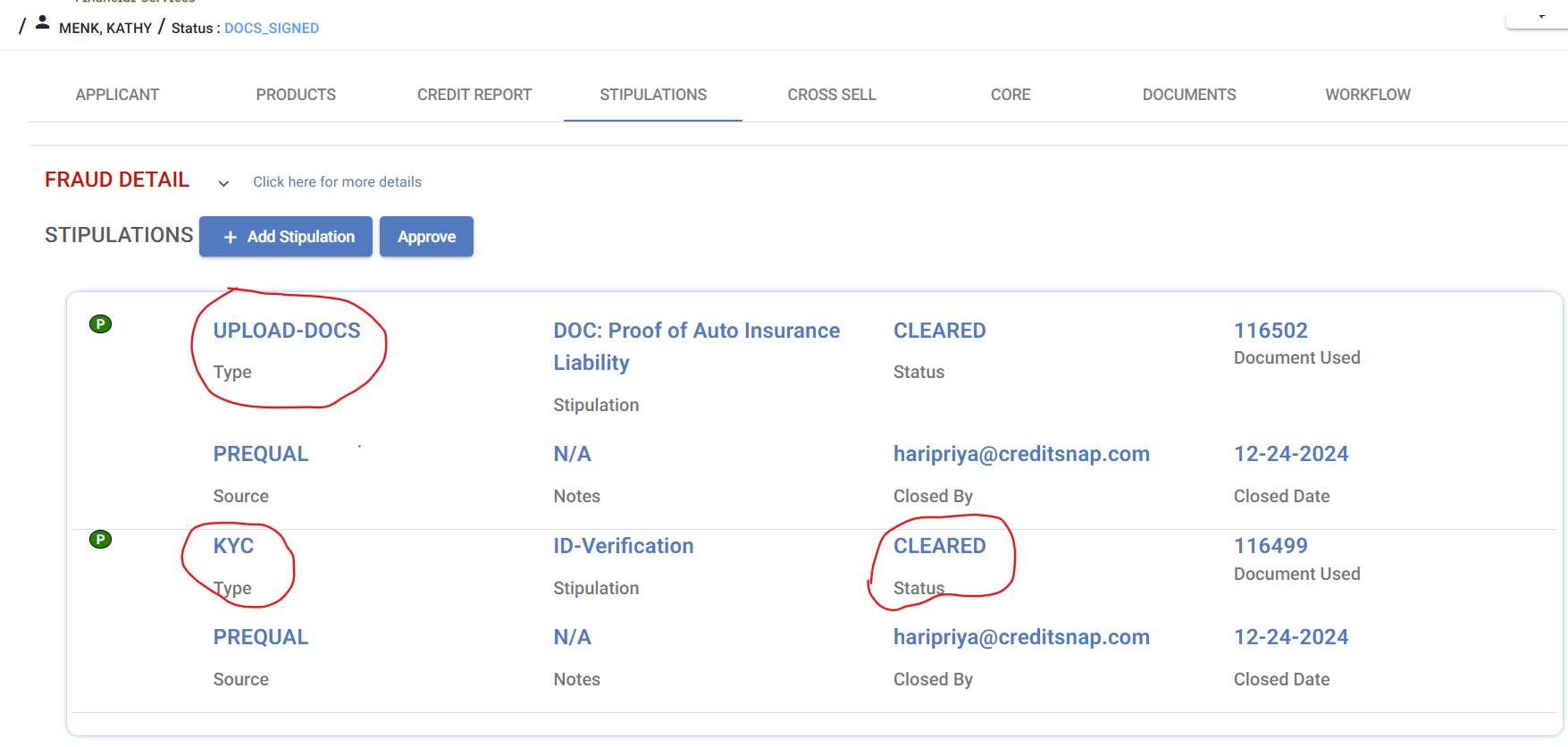
How do you manage them?
- Some stipulations like ID Verification and Income Verificaiton will be created by the system and most likely "cleared" by the system with an audit trail of how the system automatically cleared them.
- Most "Upload Document" stipulations need someone to do a review before "Clearing" it.
- Unless all the stipulaitons are CLEARED, one cannot generate eSignature package and neither can they push the applicaiton to core.
- When a stipulation is created - either by the system OR by one of you - they all start in PEND status. They can be moved to "CLEAR" status
Common Issues and Troubleshooting Steps
- When you try to create an esignature package or when you expect customers to see the esignature package, system is not showing the agreements - most likely a stipulation is pending
How to Filter Applications & Options
How to filter through the applications in your dashboard?
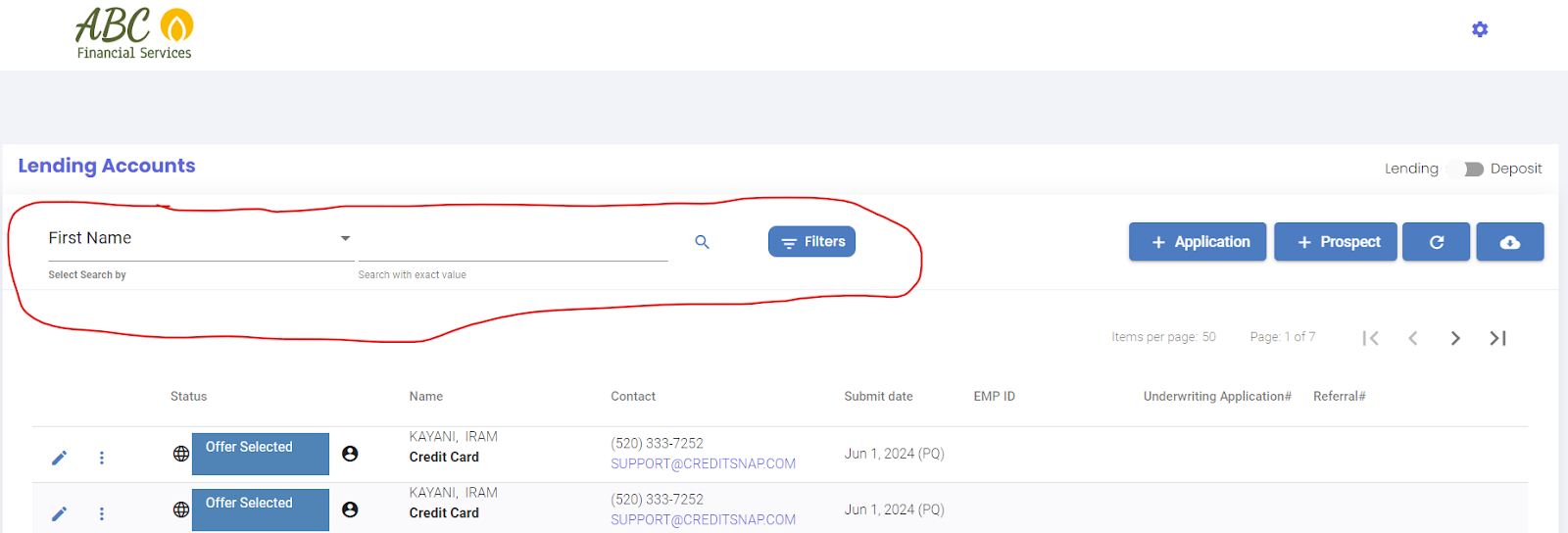
To filter applicaitons to find what you are looking for, two filters are available - simple and advanced.
Simple Filter Options - You can filter using inputs such as - First Name, Last Name, Contact No , Email, Core Account, Referral , App ID (see attached)
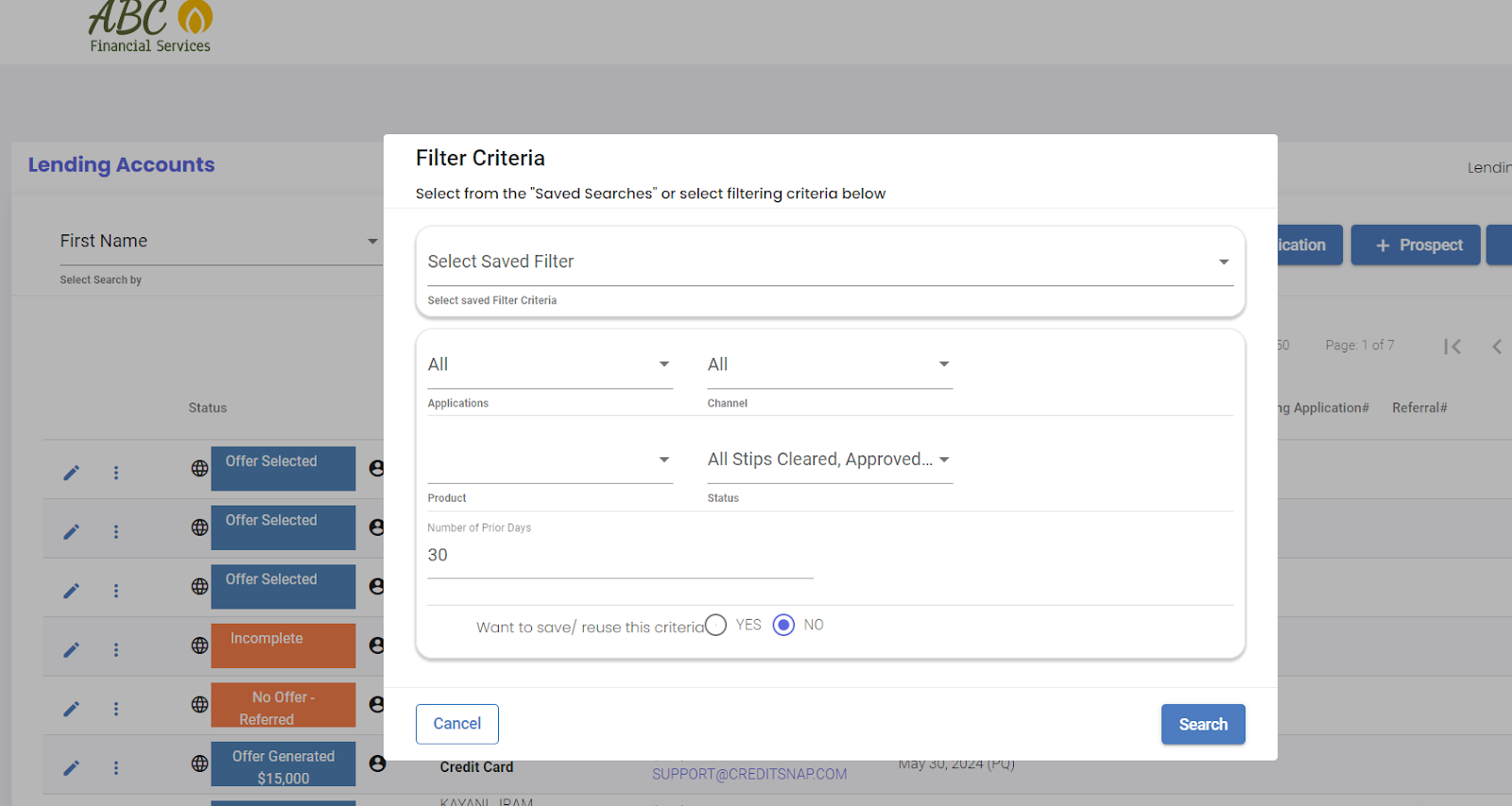
Advanced Filter Options -
Using the "Filters" button on the main dashboard, advanced filters can be applied and used. Not only can you use these advanced filters, but those searches can be "saved" and reused
Deposit Dashboard - Status Overview
What are the different Application Statuses
CreditSnap experience is designed to automatically allow applicant through the different stages of the applicaiton. Each stage of the deposit applicaiton process is represneted by one icon. An application needs your attention ONLY when one of the icons are RED

The colors of the above logos dictate their current statuses:
GREY - Not Started
BLACK - Started
RED - Failed
Green - Complete Successfully
KYC Level I

This icon is a representation of the first level of KYC. It includes OFAC and other checks. If this leads to a "Flag" (NO CLEAR), then KYC Level II has to be CLEARed by the applicant before progressing further. Some organizations trigger KYC Level II even if KYC Level I is a CLEAR
KYC Level II

This icon is a representation of the second level of KYC. It usually involves full ID Verificaiton. System does a good job at reviewing the IDs and authenticating it for validity (including comparing the face picture to the picture on the ID). However, sometimes the ID picture or the selfie picture can be pixelated or not taken in good lighting - and in these scenarios the system will mark such an applicaiton as "Pending Review" and this icon will turn RED.
If RED, then you will need to review the ID Verificaiton documents from the "Documents" tab and if everything looks good, use the "Approve ID Verification" option. Once approved use "Send App Online" option to send the aplicaiton back to applicant
Agreements / eSignatures

This icon is a representation of agreements status. Agreements will be triggered ONLY after KYC is complete. eSignatures are always administered from the "Documents" tab. However, this icon lets you immediately gaze the status. GREY indicates the agreement step has not begun. BLACK indicates this step has begun (customer received the signature request) but customer has not completed the step or the applicant might have completed but the coapplicant may not have completed. GREEN indicates agreements are successfully completed. RED indicates some issue with the completion, and hence needs your attention.
eSignature packets can be created, edited and sent - all from within Documents tab.
Funding/Payment Status

This icon is a representation of funding/payment status. Although it is a "card" icon, it represents funding done through any mechanism - be it ACH, Debit Card, Credit Card (or) Internal GL (Acocunt to Account) Transfer. Funding is usually possible ONLY after agreements are signed. GREY indicates the funding step has not begun yet. BLACK indicates this step has begun (customer received the funding link) but customer has not completed the step. GREEN indicates funding was successfully completed. RED indicates some issue with the payment transaction, and hence needs your attention. Payment transaction receipt is available in the "Documents" tab, and this tab also gives you the ability to refund a payment transaction if you need to. (Only available if your Organization uses RePay and not with Authorize.Net)
Core Onboarding Status (Applicable ONLY if CreditSnap integrates into your core system. Flex, DNA, Symitar, XP2, Corelation, Base 2000 are all examples of Core systems that CreditSnap is integrated with)

CreditSnap automatically boards the account into Core - usually prior to Agreements as the account number is needed on the agreements. Where account number is not needed on the agreements, core boarding is done after agreements and funding steps are completed
Inside Application, overview of the tabs
Application Dashboard
Once you click on the Edit Application icon (Pencil Icon) on the far left of each application - you will be taken inside an individual application. Here you will get a complete in depth look at this application. As the application dashboard is in depth and loaded with features we will break it down into multiple steps based on individual tabs you will see there.
Please note that this breakdown is what is applicable for 90% of all CreditSnap features and some features may or may not apply to your institution. The CreditSnap team is happy to help if you don't see something that applies to your institution
Applicant Tab
The Applicant tab as the name suggests gives us a full idea of the borrower information collected through the customer facing UX.
- Top Half
- On the top you will see the status of Application number, Type of App (Individual/Joint), type of account the user came into the funnel looking for status of the application and channel
- All the the other Tabs the user can toggle to
- Basic KYC information along with the current status this application is on followed by Member/Account # (these will be populated directly from core after the Core if there is a core integration)
- Bottom Half
- Provides insights into other feature information where applicable such as:
- Member Eligibility
- Additional Information
- Address History
- Mailing Address
- References
- Event History - Event history maintains a complete event by event history of all the actions taken on this application both by the customer and the staff handling this application
- Consent History - All the consent the customer has agreed or disagreed to while starting the application
- Provides insights into other feature information where applicable such as:
Terms Tab
This tab displays the account types the customer has already selected.
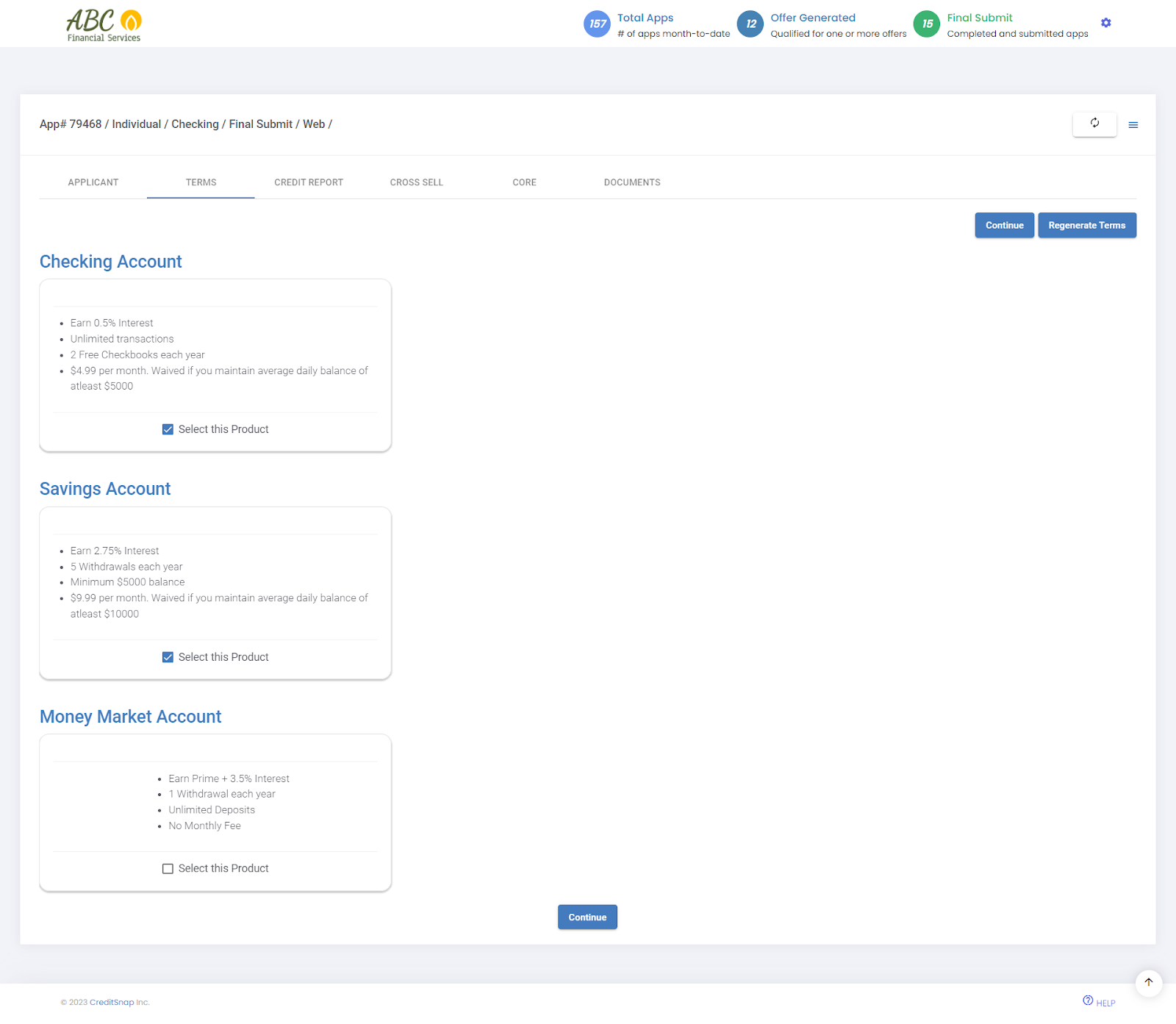
What is the Regenerate Terms Button?
The regenerate terms button enables you to regenerate the terms presented to the customer. This is usually applicable when you are creating an application from the back office or when you need to regenerate the terms in scenarios when a new type of account has been added after the application has already been created. When you regenerate terms you will be shown the following popup:
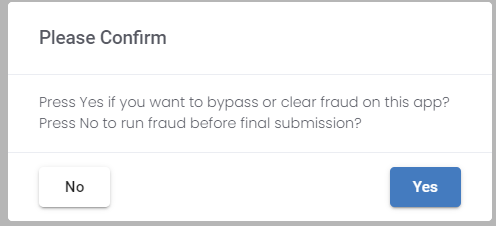
It is advised to never bypass fraud checks other than in special scenarios at the staffs discretion.
Credit Report Tab
This is where you will go if you want to understand how the credit ratios are working or examine what exactly the credit profile of this customer is.
If it is an individual application, which is a single applicant application you will just see one primary tab and the credit report for the primary. In case there is a co-borrower, you will see a co-borrower tab right next to primary which can also be examined by clicking on it.
Let us draw our attention to the ratios presented at the top of the tab screen. Please note: These ratios are at the loan level not the primary or co-borrower level. This is because we take the trade lines from both primary and co-borrower add them up to, to arrive at the joint ratios. So that's why these ratios are at an application level and not at a primary or a co-borrower level. These ratios are structured as:
Credit summary
This section gives us a 10,000 foot view of what this borrower's credit profile looks like.The score is a great indication of the underlying credit behavior. It could be a FICO score, a VantageScore, FICO Score 8 or whatever score your institution uses will show up here. This section also provides information on all the trades ,open trades, installment trades and revolving trades.
Collections
This section indicates upfront if there is any adverse behavior that you should know of.
Judgments
Indicates if there are any judgements on record that you should know about.
Fraud Alerts
This section will appear if there are any SSN or date of birth mismatches. If you are subscribed to any fraud warning/alerts from your bureau they will appear here. Please note that this section is only visible if there is a fraud alert on the profile of the applicant(s).
Trade Lines
The trade lines are split into Open Trades and Closed Trades.
Each loan is a trade line of its own and you can see original terms and the remaining term along with the term and rate. When you look at all this information you usually get a pretty good perspective on things like - was there a term extension, what is the remaining term, what's the remaining balance and current monthly payment this borrower is making on this particular installment loan, and then you come to payment status.
Inquiries
You can see the list of inquiries on this credit report presented here.
If you want to see the raw credit report itself, we give you that option. Simply click on the Full Credit Report button at the bottom of the screen.
Cross Sell Tab
The cross sell tab comes into play when you also have the lending platform and cross sells setup with CreditSnap. This tab will display the cross sell offers for loans the user has selected if they do so. It will remain blank if no selections are made. Your staff can engage the customer and make a selection for the customer. After which you will be able to create a loan application in a few clicks.
Core Tab
When to use Push to Core?
The core tab allows you to manually push the application to core using the push to core button and is applicable in the below scenarios:
- In scenarios where the user completes ID verification successfully but the Core information is not populated on the applicant tab
- In scenarios where ID verification has failed but the staff is able to verify that the ID is legitimate, either by checking the Id verification report in the documents tab or by reviewing an ID manually.
You will be asked to confirm that Id verification status has been verified before taking this action.
Documents Tab
This tab presents a large amount of details and comes with a lot of functionality.
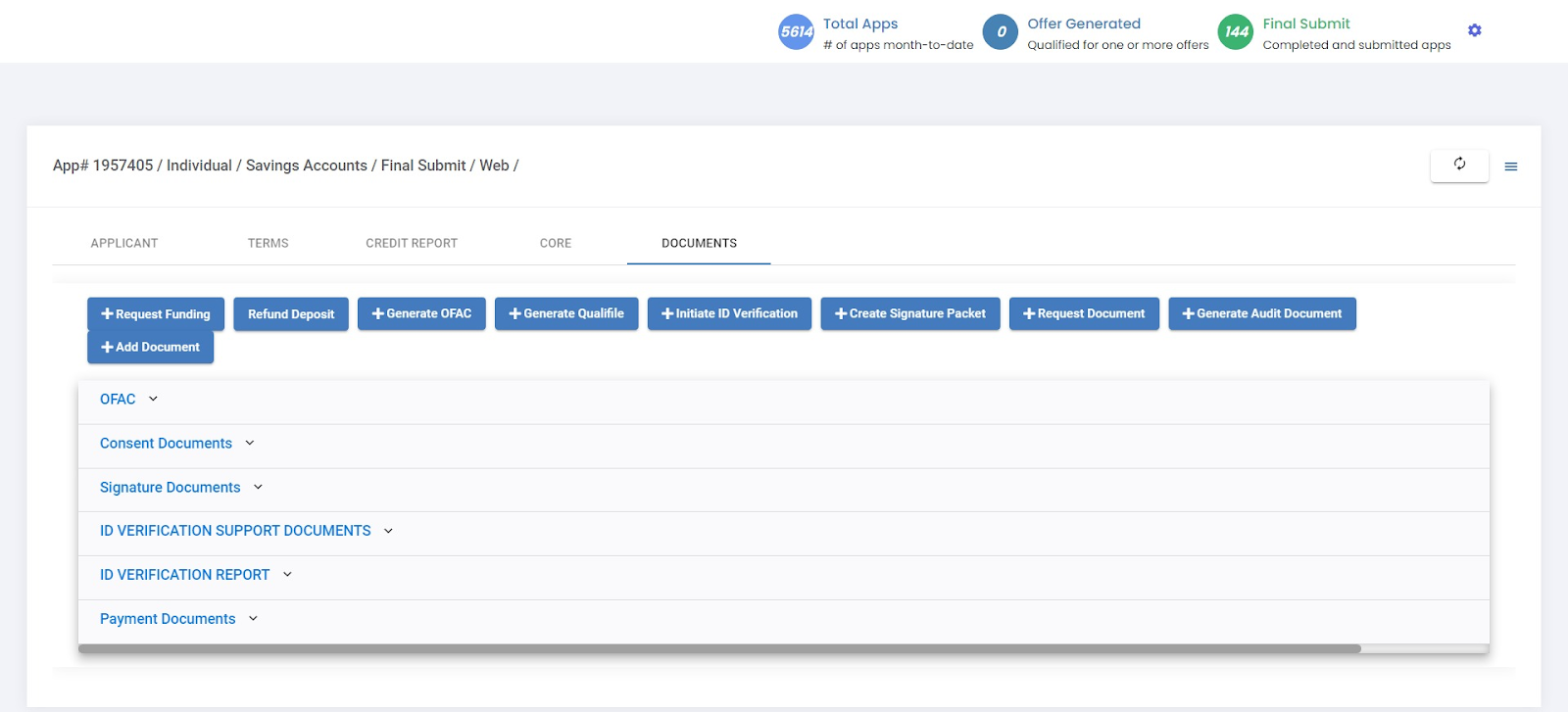
In this tab we have a complete record of all the reports returned from our integrations as well as consent documents etc, such as:
- OFAC Report
- Other Fraud Reports where applicable - (example Chexsystems)
- Consent Documents - Keeps a record of all the consents provided by the customer at the final submit stage, including IP address and timestamps
- Signature Documents - Record of the signed documents when the signatures are complete or the documents that are sent out and pending signatures
- ID Verification Support Documents - Detailed report of the decision on ID verification along with support material provided for id verification (example DL, passport, state Id etc.)
- ID Verification Report - Here you will find the consolidated CDD report of the ID verification
- Payment Documents - Payment information when funding is complete
Manual Intervention Scenarios/Features in Account Opening BO
Though the happy path is the customer seamlessly moving through all the stages of the application on their own there are scenarios where you will need to intervene and take some manual steps to get the application to the finish line depending on what stage a particular application is on.
To reiterate this is the order of the application flow in 90% of the cases (If your case is different please reach out to the CreditSnap team for help) :
- Customer Completes Application and Provides Consents
- Completes KYC/ID-Verification to Successfully be generate Member related credentials from Core
- Signs E-signatures for Account Opening Docs
- Funds the account
Let us break down the manual Intervention actions for each of the above stages of the application:
Manual Action Buttons On Documents Tab
- +Request Funding - Use to send “Resume Application” links to fund the account. Should only be used after esignatures are complete
- Refund Deposit - Allows you to refund already funded application
- +Generate OFAC - Manually generates OFAC
- +Generate Qualifile - Manually generates Qualifile report if applicable for your Institution
- +Initiate ID Verification - Use to send “Resume Application” links to the Applicant
- +Create Signature Packet - Allows you to manually select and send esginature documents to the customer. IMPORTANT: After selecting the required documents and clicking “Request eSignature”, expand the “Signature Documents'' tab that you just created. Here you can view
- the signature package by clicking “View”, once you are satisfied please click “Send for E-Signature” to deliver the signature package to the customer to sign.
- +Request Document - You can request support documents by using this button. The requirement of what these support documents are should be shared with the CS team to configure in advance. You can raise a helpdesk ticket for this if you want to do so now.
- +Generate Audit Document - Creates a pdf with all the user information along with a history of all the events in this application
- +Add Document - You can upload documents to the application by choosing this button
What do do when an application is submitted but ID verification is not completed?
Verify the status of the application on the Applicant tab - If it is on Verification Started status the user may not have completed the IDV steps on their mobile device. If it is in Verification Failed status check the ID Verification Support Documents and ID Verification Report sections on the Documents tab to see why they have failed.
In both of the above scenarios you can click on the +Initiate ID Verification Button to send out links to the customer to complete IDV.
In cases where IDV has failed but you are comfortable approving the ID manually either on reviewing the IDV support documents or by other methods - You can Push to Core from the Core tab - this will generate and deliver core data to the application
What to do when the customer has not received the e-signature package?
In cases where the applicant has not received the e-sign package to sign after completing IDV successfully and or where you may need to resend them. There are two methods to deliver them
- If an app is already on the ACCOUNT_SUBMITTED or DOCS_STARTED Status - Use the Hamburger menu on the top right of the dashboard (
) and in the dropdown select “Send App Online” This will trigger documents of signatures and in the same flow will direct the customer to fund the account subsequently.
- Click the +Create Signature Packet button on the Documents tab and select the applicable documents you wish to deliver for signature. This will create a Signature Documents package which will be delivered directly by docusign and any subsequent steps to complete the application will need to be triggered from the BO.
Reporting, Tracking and more
CreditSnap Tracking overview:
CreditSnap supports two tracking parameters:
- referralCode (to be used at campaign level)
- subID (to be used at lead level)
usage exaple: https://apply.creditsnap.com/product/PP?referralCode=google-ads&subId=acb-dkls1-78sh
Both are optional. For API channel, these can be passed as a part of the API payload
ReferralCode Overview:
- when referralCode passed in the URL as url parameter, it will be populated with the param value
- In the absence of these variables, system has the automatic capability to look for utm_source, utm_medium and utm_campaign params, and if they are, then they will be captured and appended together into referralCode
- Note that these parameters will be sued ONLY IF referralCode is not there
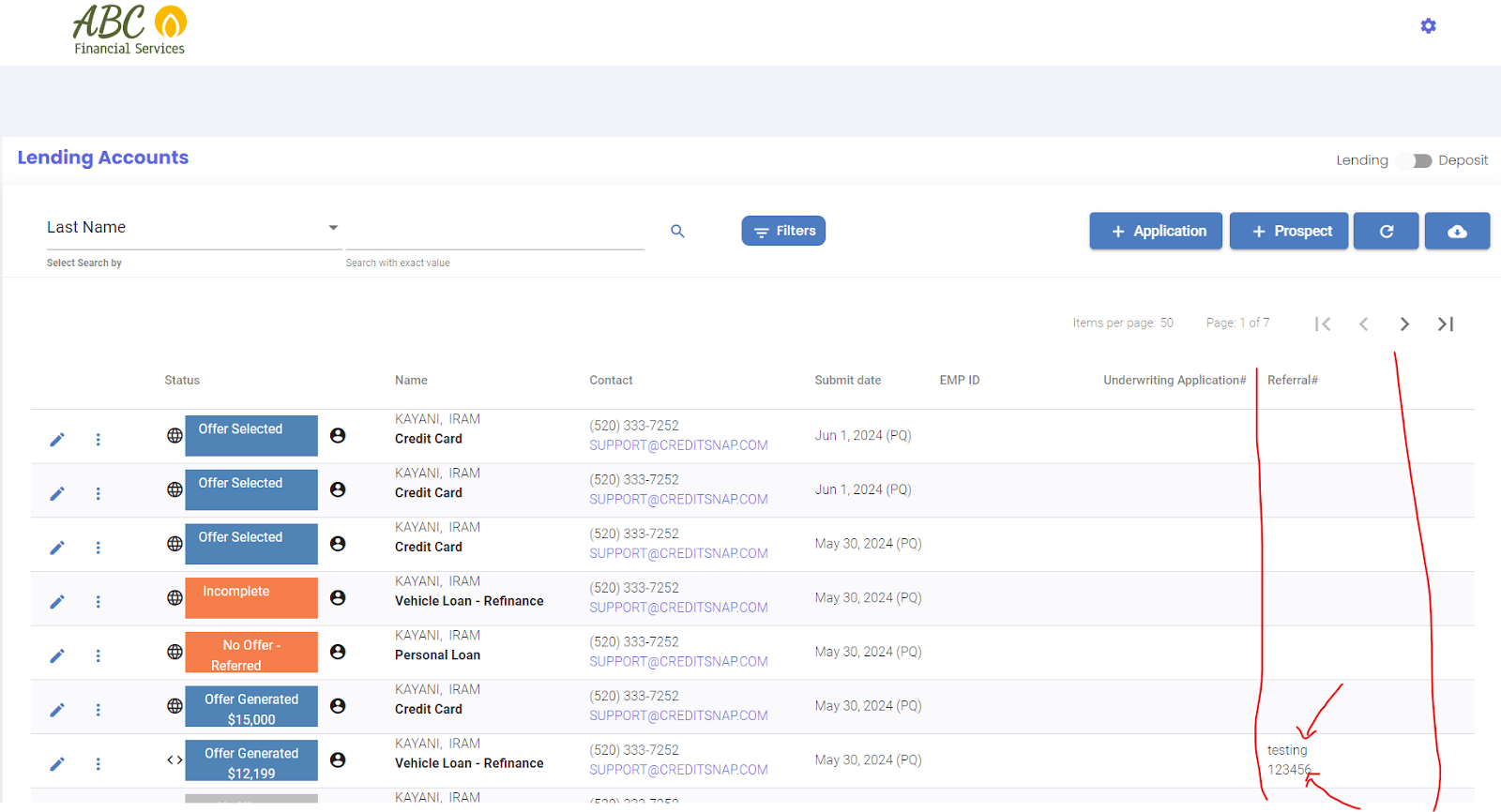
- This will be displayed under "Referral#" column on the dashboard - the value on the top (see screenshot attached. "testing" is a referralCode on that particular applicaiton)
subID Overview:
- When subID passed in the URL as url parameter, then subID parameter will be populated with the param value
- This will be displayed under "Referral#" column on the dashboard - the value at the bottom (see screenshot attached. "123456" is a subId on that particular applicaiton)
Applicant / Borrower Tab
You will find this tab referred to as "Borrower" tab in a Loan Application, and an "Applicant" tab in a Deposit application
Applicant/Borrower Tab
This tab, as the name suggests, is the main tab for applicant and primary application information.
- Top Half
- On the top you will see the status of Application number, Type of App (Individual/Joint), type of account the user came into the funnel looking for status of the application and channel
- All the the other Tabs the user can toggle to
- Basic KYC information along with the current status this application is on followed by Member/Account # (these will be populated directly from core after the Core if there is a core integration)
- Bottom Half
- Provides insights into other information, where applicable, such as:
- Membership Eligibility selections made by the applicant
- Additional Information like Mother's Maiden Name, Work Phone Number, Employer's phone number, Insurance Information, ID Information etc.
- Address History
- Mailing Address
- References
- Benefeciaries - Only applicable for Deposit
- Event History - Event history maintains a complete event by event history of all the actions taken on this application both by the customer and the staff handling this application
- Consent History - All the consent the customer has agreed or disagreed to while starting the application
- Provides insights into other information, where applicable, such as:
Terms tab
This tab displays the account types the customer has already selected.
What is the Regenerate Terms Button?
The regenerate terms button enables you to regenerate the terms presented to the customer. This is usually applicable when you are creating an application from the back office or when you need to regenerate the terms in scenarios when a new type of account has been added after the application has already been created. When you regenerate terms you will be shown the following popup:
It is advised to never bypass fraud checks other than in special scenarios at the staffs discretion.
Credit Report Tab
Credit Report Tab
This is where you will find the full credit report. If it is an individual (single applicant) application, you will just see one primary tab and the credit report for the primary. In case there is a coapplicant, you will see a second tab right next to primary which can also be examined by clicking on it.
Credit summary
This section gives us a 10,000 foot view of what this borrower's credit profile looks like.The score is a great indication of the underlying credit behavior. It could be a FICO score, a VantageScore, FICO Score 8 or whatever score your institution uses will show up here. This section also provides information on all the trades ,open trades, installment trades and revolving trades.
Collections
This section indicates upfront if there is any adverse behavior that you should know of.
Judgments
Indicates if there are any judgements on record that you should know about.
Fraud Alerts
This section will appear if there are any SSN or date of birth mismatches. If you are subscribed to any fraud warning/alerts from your bureau they will appear here. Please note that this section is only visible if there is a fraud alert on the profile of the applicant(s).
Trade Lines
The trade lines are split into Open Trades and Closed Trades.
Each loan is a trade line of its own and you can see original terms and the remaining term along with the term and rate. When you look at all this information you usually get a pretty good perspective on things like - was there a term extension, what is the remaining term, what's the remaining balance and current monthly payment this borrower is making on this particular installment loan, and then you come to payment status.
Inquiries
You can see the list of inquiries on this credit report presented here.
Raw Data
If you want to see the raw credit report itself, we give you that option. Simply click on the Full Credit Report button at the bottom of the screen.
Documents Tab
Documents Tab
This tab presents a large amount of details and comes with a lot of functionality.
In this tab we have a complete record of all the reports returned from our integrations as well as consent documents etc, such as:
- OFAC Report
- Other Fraud Reports where applicable - (example Chexsystems)
- Consent Documents - Keeps a record of all the consents provided by the customer at the final submit stage, including IP address and timestamps
- Signature Documents - Record of the signed documents when the signatures are complete or the documents that are sent out and pending signatures
- ID Verification Support Documents - Detailed report of the decision on ID verification along with support material provided for id verification (example DL, passport, state Id etc.)
- ID Verification Report - Here you will find the consolidated CDD report of the ID verification
- Payment Documents - Payment information when funding is complete
Manual Intervention Scenarios/Features in Account Opening BO
Though the happy path is the customer seamlessly moving through all the stages of the application on their own there are scenarios where you will need to intervene and take some manual steps to get the application to the finish line depending on what stage a particular application is on.
To reiterate this is the order of the application flow in 90% of the cases (If your case is different please reach out to the CreditSnap team for help) :
- Customer Completes Application and Provides Consents
- Completes KYC/ID-Verification to Successfully be generate Member related credentials from Core
- Signs E-signatures for Account Opening Docs
- Funds the account
Let us break down the manual Intervention actions for each of the above stages of the application:
Manual Action Buttons On Documents Tab
- +Request Funding - Use to send “Resume Application” links to fund the account. Should only be used after esignatures are complete
- Refund Deposit - Allows you to refund already funded application
- +Generate OFAC - Manually generates OFAC
- +Generate Qualifile - Manually generates Qualifile report if applicable for your Institution
- +Initiate ID Verification - Use to send “Resume Application” links to the Applicant
- +Create Signature Packet - Allows you to manually select and send esginature documents to the customer. IMPORTANT: After selecting the required documents and clicking “Request eSignature”, expand the “Signature Documents'' tab that you just created. Here you can view
- the signature package by clicking “View”, once you are satisfied please click “Send for E-Signature” to deliver the signature package to the customer to sign.
- +Request Document - You can request support documents by using this button. The requirement of what these support documents are should be shared with the CS team to configure in advance. You can raise a helpdesk ticket for this if you want to do so now.
- +Generate Audit Document - Creates a pdf with all the user information along with a history of all the events in this application
- +Add Document - You can upload documents to the application by choosing this button
What do do when an application is submitted but ID verification is not completed?
Verify the status of the application on the Applicant tab - If it is on Verification Started status the user may not have completed the IDV steps on their mobile device. If it is in Verification Failed status check the ID Verification Support Documents and ID Verification Report sections on the Documents tab to see why they have failed.
In both of the above scenarios you can click on the +Initiate ID Verification Button to send out links to the customer to complete IDV.
In cases where IDV has failed but you are comfortable approving the ID manually either on reviewing the IDV support documents or by other methods - You can Push to Core from the Core tab - this will generate and deliver core data to the application
What to do when the customer has not received the e-signature package?
In cases where the applicant has not received the e-sign package to sign after completing IDV successfully and or where you may need to resend them. There are two methods to deliver them
- If an app is already on the ACCOUNT_SUBMITTED or DOCS_STARTED Status - Use the Hamburger menu on the top right of the dashboard (
- Click the +Create Signature Packet button on the Documents tab and select the applicable documents you wish to deliver for signature. This will create a Signature Documents package which will be delivered directly by docusign and any subsequent steps to complete the application will need to be triggered from the BO.
Core Tab
Core Tab
When to use Push to Core?
The core tab allows you to manually push the application to core using the push to core button and is applicable in the below scenarios:
- In scenarios where the user completes ID verification successfully but the Core information is not populated on the applicant tab
- In scenarios where ID verification has failed but the staff is able to verify that the ID is legitimate, either by checking the Id verification report in the documents tab or by reviewing an ID manually.
You will be asked to confirm that Id verification status has been verified before taking this action.
CrossSell Tab
Cross Sell Tab
The cross sell tab comes into play when you also have the lending platform and cross sells setup with CreditSnap. This tab will display the cross sell offers for loans the user has selected if they do so. It will remain blank if no selections are made. Your staff can engage the customer and make a selection for the customer. After which you will be able to create a loan application in a few clicks.
Trade/Collateral Tab
This tab is visible only IF 1) It is a Refinance Loan OR it is a Consolidation Loans OR it is a Balance Transfer Credit Card (or) 2) It is a vehicle loan.
Trade Line Selection
- Tradeline selection is only avialbale on a Refinance Loan OR it is a Consolidation Loans OR it is a Balance Transfer Credit Card
- CreditSnap system is designed to present the customer's OPEN tradelines relevant for the loan to be presented to the applicant for sleection. When selected system knows to automatically exclude that trade in the DTI analysis, thus making the system capable of doing automatic and INSTANT offers
- However, a need may arise when the tradeline needs to be changed and this section is where that can done
- Sometimes, the tradleine may not show up on the credit report. In such a scenario, a balance amount and monthly payment can be added as a "manual selection"
Vehicle Selection
All vehicle loans need a vehicle selection. It is optional for a vehicle purchase loan as the end user may not be ready with the exact vehicle yet (and it can be added later)
- Vehicle selection and valuation are powered by full integration with JD Power NADA (Carfax and KBB integrations also available)
- Vehicle selection can be done using three different approaches:
- License Plate - CreditSnap has the ability to find the exact vehicle from License Plate and State , and can do automatic valuation on that vehicle
- VIN - CreditSnap has the ability to find the exact vehicle from VIN, and can do automatic valuation on that vehicle
- Year, Make, Model and Body Type - If none of the above information available, then you can identify the vehicle with year, make, model and body type and secure valuation
- There are times when vehicle valuation could not be done automatically, and you can choose "manual" to update valuation manually
Credit Analysis Tab
This is where full manual credit analysis is performed
Legend and Status Definitions
Legend of the different icons used in CreditSnap
![606261cbd8336603f14b72ad_faqImage[1].png](https://support.creditsnap.com/uploads/images/gallery/2024-06/606261cbd8336603f14b72ad-faqimage1.png)
| Status Name | Description | Relevant for Lending? | Relevant for Deposits? |
| All Stips Cleared | All the stipulations on the application are cleared, and application ready to move to next step. Examples of stipulations - Document Request (Upload), ID verificaiton, Income Verification etc. | Y | Y |
| Approved | Otherwise known as "Underwriting Approved". This status indicates that the applicaiton has gone through Hard Inquiry, and secured underwriting approval. Approval may be from an external LOS or from CreditSnap internal LOS | Y | - |
| Complete | Application completed all steps successfully | Y | Y |
| Core Oboarded | Applicaiton approved, and account booked to Core | Y | Y |
| Core Oboarding Failed | Applicaiton approved, but Core Onboarding failed | Y | Y |
| Decline | Application Declined. Can be Credit Decline or Fraud Decline. | Y | Y |
| Documents Pushed to LOS | Documents on this applicaiton are pushed to LOS | Y | - |
| Documents Requested | A document request was made to the applicant from the Admin System | Y | Y |
| Documents Uploaded | Applicant completed the requested document upload | Y | Y |
| eSignature Complete | eSignature step is now complete | Y | Y |
| eSignature Incomplete | eSignature started but not complete. If Individual applicaiton, then the primary has not completed eSignature. If a joint applicaiton, then either CoApplicant did not complete the eSignature or both primary and coapplicant did not complete the eSignature | Y | Y |
| Final Submit | Application submitted for final approval. Most of the time, this should go through automatic approval process, but if not, review for decline reasons | Y | Y |
| Final Submit (In Progress) | Application submitted for final approval but it is in progress. The odds of seeing this status is very rare, and you may see it if you were viewing the applicaiton or dashboard at the very moment of the final submission step. While some LOS systems can take just a few seconds, some can take up to 40 to 50 seconds to process the final submission. | Y | - |
| Final Submit (Referred) | Application submitted for final approval, but applicaiton is pending manual review | Y | Y |
| Final Submit Failed | Application submitted for final approval, but some issues with the LOS or Core system led to an API failure. Pls review for errors and make a final submit again | Y | Y |
| Fraud (IP or Phone) |
This fraud detection happens before soft inquiry so that you do not incur unnecessary and fraudlent credit report pulls. |
Y | Y |
| Fraud Decline | If you are using a Third Party Fraud detection integration AND if the third party recommended Decline | Y | Y |
| Fraud Review | If you are using a Third Party Fraud detection integration AND if the third party recommended Review. Usual next steps are to review the application for Fraud, and potentially request a document or two for verificaiton before approving it for next steps. | Y | Y |
| ID Verification Failed | True ID Verification step completed, but system could not confirm if the ID is valid. Usual next step is to review the ID Verificaiton document, and if it is good, then Clear the ID Verificaiton stipulaiton to let the applicaiton move to next step | Y | Y |
| ID Verification Incomplete | True ID Verificaiton initiated but applicant(s) did not complete it yet | Y | Y |
| ID Verification Success | True ID Verification step completed, and system confirmed ID is valid AND ID does belong to the applicant | Y | Y |
| Income Verification Failed | Income Verification step completed, but income does not match what is reported. Usual next step is to request additional income documentation. | Y | - |
| Income Verification Incomplete | Income Verificaiton initiated but applicant(s) did not complete it yet | Y | - |
| Income Verification Success | True ID Verificaiton initiated and successfully verified. | Y | - |
| Incomplete | Applicant left the application before seeing product offers/options | Y | Y |
| Loan Disbursed | Loan disbursement instructions sent to Core | Y | - |
| Loan Disbursement Started | Loan disbursement instructions added but not sent to Core yet or did not receive a confirmaiton from Core yet | Y | - |
| No Hit | Credit Bureau pull unsuccessful - No Hit | Y | Y |
| No Hit (Bureau Locked) | Credit Bureau pull unsuccessful - Bureau Report Locked | Y | Y |
| No Hit (CoApplicant) | CoApplicant's Credit Bureau pull unsuccessful - No Hit | Y | Y |
| No Offer | Applicant not eligible for an offer. See "Offers" tab for reasons for no offer | Y | Y |
| No Offer (Soft) | Applicant not eligible for an offer but it may be cured by adding a co-applicant. See "Offers" tab for reasons for no offer | Y | - |
| No Offer - Referred | Applicant not eligible for an offer but it may be cured by adding a co-applicant. See "Offers" tab for reasons for no offer | Y | - |
| Offer Generated | Application has offers available, but applicant is still reviewing them. None selected yet | Y | Y |
| Offer Selected | Application has offers available, and applicant selected an offer, but waiting on the final submission | Y | Y |
| Payment Declined | Deposit transaction declined by payment processor | - | Y |
| Payment Error | Deposit transaction errored | - | Y |
| Payment Incomplete | Deposit transaction started but waiting on confirmation of successful posting. Unusual to see this | - | Y |
| Payment Skipped | Applicant skipped making the deposit | - | Y |
| Payment Success | Deposit transaction completed successfully | - | Y |
| Pending OTP | Applicant completed page 1 but did not complete OTP that is prompted after Page 1. Can be an indicator of fraud OR applicant may be trying with a phone number that cannot accept SMS/OTP | Y | Y |
| PreEligibility Fail | Application Declined prior to bureau pull. Usually geography or age or other types of preliminary declines, designed to reduce bureau costs | Y | Y |
| Reviewed | A status that can be manually set from the admin system. It is an indicaiton that someone did review the application | Y | Y |
| Stips Cleared | All the stipulations on the application are cleared, and application ready to move to next step. Examples of stipulations - Document Request (Upload), ID verificaiton, Income Verification etc. | Y | Y |
| Underwriting Review | Application waiting for Credit Underwriting Review | Y | - |
| Withdrawn | Applicant requested for the application to be withdrawn | Y | - |
| Workflow Started | Application is approved and automation/verification workflow started. This is a momentary status change | Y | Y |
CreditSnap System Status Values
|
Offer Status
|
Collateral Status
Applicants Status: Statuses from Offer Status and Collateral Status will reflect in this Application Status PLUS the below
|
Below Statuses are related to Approval, Stipulations and workflow after the application is submitted for final review
|
Underwriting Status
Lending Fraud / Deposit KYC Level I Status
Lending ID Verification / Deposit KYC Level II (IDV) Status
eSignature (Loan Agreement) Status
|
Payment / Funding Status
Core Onboarding Status
|
Reporting
- Standard Reports - Available within admin system under Gear Icon -> Lending Admin (or Deposit Admin) -> Reports
- Data downloads for adhoc analysis - A very large dataset is available within admin system for download, allowing product owners to conduct various analyses
- Behavioral Data - Google Analytics (and Google Tag Managers) is built into the platform and accessible by you. PLUS conversion flow chart is a unique dashboard that demonstrates how users are behaving through your digital flow allowing you to think about optimization
In addition to above data availability, CreditSnap also gives you two mechanisms to pull data into your very own data warehouse
- Daily FTP - CreditSnap can generate data feeds for every application and push them into your data Warehousing FTP folder, and you can process that data to build your own data warehousing capabilities, and feed that into your internal dashboarding tools like Tableau
- Realtime Data Events - Those of you that can accept data events through APIs for realtime data warehousing capabilities, CreditSnap got you covered. As each loan or deposit application goes through its lifecycle, CreditSnap system published various lifecycle events through event APIs, and you can subscribe to your choice of events and thereby accept tthe incrementally mature payloads and process them into your data warehouse.
Offers, Underwriting, Decline Types and Rule Types
Section 1: The 3 Decline Types
Every application is first verified for knock out rules before determining whether the application can be shown an instant offer. In other words, applicaiton qualifies for an offer ONLY IF it passes all the credit rules. Any time itfails a rule, that rule will determine what happens to that appliccation next
- If there are ONE or MORE failed rules with Decline Type = HARD, then it implies that the applicant should be shown a Thank You page with no path to manual review
- If there are NO failed rule Decline Type = HARD but atleast ONE or MORE failed rules with Decline Type = SOFT, then it implies that the application may potentially be cured if a co-applicant is added. Usually these are DTI or score rules that MAY be overcome using a coapplicant. CreditSnap has the ability to automatically prompt the applicant to add a co-applicant. If you are interested in this, please talk to us
- If there are NO failed rule Decline Type = HARD or SOFT but atleast ONE or MORE failed rules with Decline Type = PEND, then it implies that the application needs to go into manual review. No offer, but not a decline either, and needs manual review. These apps may also be called "Referred"
As mentioned above, if all rules are a pass, then the system treats it as "ready for offer" and goes into the Tier determination and loan limit calculations to present an offer to the customer
Section 2: The 5 Rule Groups
Above overview is focused on credit based rules. However, CreditSnap supports rules that are used in 5 different situations - beyond credit rules - and those are the 5 rules groups you will see when you go into Credit Policy Admin
- Pre Bureau Rules: This set of rules are designed to determine whether the request needs to move into "Soft Inquiry" stage or not. Usually state or zip or country rules are the most dominant ones in this group, and if the applicant does not come from the geography that the Credit Union or Bank serves, then the application can be stopped before a soft inquiry is pulled (and before incurring the credit bureau cost)
- Soft Inquiry Rules: This set of rules are executed after soft inquiry is made. Section 1 is a good illustration of this rule group
- Hard Inquiry Rules: This set of rules are executed after hard inquiry is made and ONLY if CreditSnap is doing a hard inquiry for you. Section 1 is a good illustration of this rule group.
- Stipulation Rules: CreditSnap has extensive support for both Automatic and Manual stipulations (or verifications). Stipulation rules allow you to determine which loan types and which rules shoudld etermine what stipulations or verifications to be performance on any given application
- AUTOMATIC = CreditSnap will automatically determine the need for ID Verificaiton or Income Verificaiton etc, and also ensure those are taken care of automatically
- MANUAL = While the system can create these stipulaitons using stipulations rules, these are usually manual follow throughs in nature.
- A good example is the need to do a DMV follow-up on an auto loan. Since this cannot be automated, a rule can be defined in the Stipulations Rule Group with condition like "if loan = AUTO", then add a stipulation Type = MANUAL and Descritpion = DMV Follow-up. While it is a manual follow-up, system will ensure the stipulaiton is CLEARED before the loan can go to Docs
- Fraud Rules: While this is the last category here, this is a very important category. CreditSnap itegrates with several fraud systems and they tend to deliver a lot of metadata. This group of rules give you flexibility to create custom fraud rules
These rule groups are applicable to both Lending and Deposit. The only exception is "Hard Inquiry" rules, which do not play a role in Deposit, because we never post a HARD inqiury on deposit applications
Indirect Lending
Indirect Lending
Initial applicaiton from Dealer and instant decision back to Dealer
1) Applications created by dealer, and it shows up in CreditSnap with car icon
2) Indirect Underwriters can be setup to only see Indirect loan apps (Select Indirect at employee setup)
3) If Dealer is sending vehicle valuation (and vehicle), then CS will reuse it and does not pull a fresh valuation. If no valuation, then CreditSnap will pull automatic vauation of the vehicle
4) CreditSnap will also automatically pull hard inquiry, run the Indirect credit rules, determine the credit Tier and determine the rates and terms available for the loan amount, rate and term that the dealer requested (Dealer may or may not have added warranty product by this stage)
5) CreditSnap automatically returns this information to dealer along with stipulations
Change in Terms:
6) if dealer wants to change any terms, they are using "Lender communicaiton tools" in Route1 or Dealer Track. These requests are also listed in event history
7) Underwriter can then use "Credit Analysis" tab to udate or override any loan parameters based on Dealer request
eContracting (Only if available):
8) if dealer is ready for eContracting, they will first do "validation", which wil ensure the loan parameters are the same or lower than the prior approval.
9) Docs and Stips are completed and sent to Lender/LOS.
10) If deal is accepted, Underwriter can review all informaiton once more, and then do "Core Onboarding" and "Disbursements"
11) If Flat Cancel, Underwirter has to undo the account in core manually
Back-office / Admin System Access Role Details
The system includes multiple access levels. Refer to the details below to understand each role and select the appropriate one for granting access.
00 Can view/edit Assigned Apps
- Employee can see ONLY those apps created by that employee
- Employee has access to Credit Reports
01 View Only - All Apps - With Credit
- Employee can see all applications
- Employee has view Only Access
- Employee has access to Credit Reports
02 View Only - All Apps - Without Credit
- Employee can see all applications
- Employee has view Only Access
03 Access to Reports Only
- Employee has access to Reports/Analytics
04 USER Without Credit Access
- Employee can see all applications
- Can process applications
05 USER
- Employee can see all applications
- Can process applications
- Employee has access to Credit Reports
- Employee has permission to assign apps to others, and to search for apps assigned to others
06 ADVANCED USER
- Employee can see all applications
- Employee has access to Credit Reports
- Employee has access to Reports/Analytics
- Can process applications
- Employee can do manual underwriting, override system decisions to change interest rate and term selections
- Employee can override Fraud decisions
- Employee has permission to assign apps to others, and to search for apps assigned to others
07 USER + Funding
- Employee can see all applications
- Can process applications
- Employee is authorized to Push to Core and Fund
- Employee has access to Credit Reports
- Employee has permission to assign apps to others, and to search for apps assigned to others
08 ADVANCED USER + Funding
- Employee can see all applications
- Employee has access to Credit Reports
- Employee has access to Reports/Analytics
- Can process applications
- Employee can do manual underwriting, override system decisions to change interest rate and term selections
- Employee can override Fraud decisions
- Employee is authorized to Push to Core and Fund
- Employee has permission to assign apps to others, and to search for apps assigned to others
09 SUPER USER
- Employee can see all applications
- Employee has access to Credit Reports
- Employee has access to Reports/Analytics
- Can process applications
- Employee can do manual underwriting, override system decisions to change interest rate and term selections
- Employee can override Fraud decisions
- Employee is authorized to Push to Core and Fund
- Employee has permission to assign apps to others, and to search for apps assigned to others
- Employee can unlock Permission
10 MARKETING ADMIN
- Employee can edit emails and SMS
11 PRODUCT ADMIN
- Employee can change Rates, Credit Policy and More
- Access to Money Movement History page
12 EMPLOYEE ADMIN
- Employee can Add, Remove, Reset Password for Employees Access
13 SUPER USER + Employee Admin
- Employee can see all applications
- Employee has access to Credit Reports
- Employee has access to Reports/Analytics
- Can process applications
- Employee can do manual underwriting, override system decisions to change interest rate and term selections
- Employee is authorized to Push to Core and Fund
- Employee can override Fraud decisions
- Employee has permission to assign apps to others, and to search for apps assigned to others
- Employee can Add, Remove, Reset Password for Employees Access
14 SUPER USER + All Admins
- Employee can see all applications
- Employee has access to Credit Reports
- Employee has access to Reports/Analytics
- Can process applications
- Employee can do manual underwriting, override system decisions to change interest rate and term selections
- Employee can override Fraud decisions
- Employee is authorized to Push to Core and Fund
- Employee has permission to assign apps to others, and to search for apps assigned to others
- Employee can Add, Remove, Reset Password for Employees Access
- Employee can change Rates, Credit Policy and More
- Employee can unlock Permission
- Employee can edit email templates and SMS templates
- Access to Money Movement History page
15 Only see branch applications
- Employee can only see branch applications